How to Claim Your Business in ChatGPT (Step-by-Step)
ChatGPT now lets businesses claim a profile, like Google Business Profile. Here’s who can, the exact steps, what to write, and what it will and won’t do.
The short answer
To claim your business in ChatGPT, sign in to ChatGPT with your business account, go to chatgpt.com/business-hub, search for your business, and choose Get started. Verify that you own the business by phone, email or your website’s DNS, upload a photo of your ID, then fill in your description, category, logo and cover photo. It’s free at launch and takes about 15 minutes, plus a few days for OpenAI’s review.
OpenAI launched this, called Businesses in ChatGPT, as a beta on November 10, 2026. Beta features change, so details here may shift. This guide covers what it is, who can use it, the exact steps, and what it will and won’t do for your business.
What is ChatGPT Business Hub?
Business Hub is OpenAI’s dashboard for managing how your business appears in ChatGPT. Think of it as Google Business Profile, but for ChatGPT. Once you claim your profile, you can:
- Correct your business details
- Add a description, category, logo and cover photo
- See how often ChatGPT mentions your business
- See how many people click from ChatGPT to your website
OpenAI reviews changes before they show up, and says it doesn’t share people’s ChatGPT conversations with businesses.
Who can claim a profile right now?
Not everyone, yet. At launch:
- Online businesses with a website can claim a profile anywhere ChatGPT is available. Most service businesses, agencies and professional firms fall here.
- Local stores and restaurants can only claim an existing listing, and only in the United States.
- Brands with several locations claim each location separately.
- US online stores and online services can also apply for a business agent, a chat assistant inside ChatGPT. Local businesses can’t use agents yet.
OpenAI can also decline businesses in some categories.
How to claim your business in ChatGPT, step by step
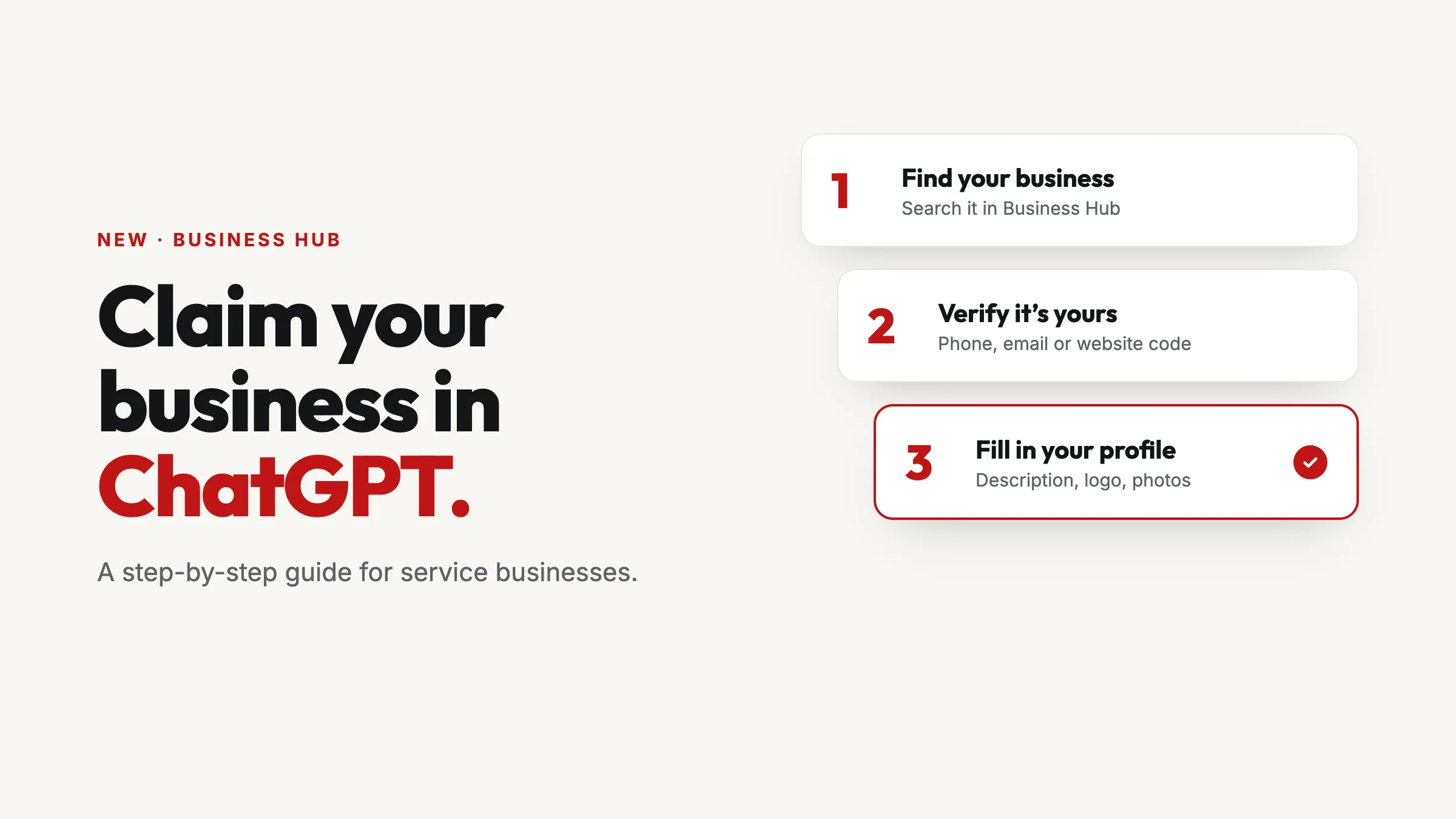
- Sign in with a business account. Your profile is attached to the ChatGPT account you use, so use one your business owns (like you@yourbusiness.com), not a personal login. You can add teammates or your agency later.
- Open Business Hub. Go to chatgpt.com/business-hub or open it from the ChatGPT sidebar.
- Find your business. Search your business name and select the right listing, then choose Get started. If you don’t see it and you’re an online business, you may be offered the option to add it. A listing marked “Contact support” is locked, and you’ll need to request access from OpenAI.
- Verify that you own it. Business Hub shows the methods that apply to you: a code sent to the business phone on the listing, a code sent to your business email, a TXT record added to your website’s DNS, or connecting a Shopify store. The phone or email code is the quickest.
- Verify your identity. Upload a photo of a driver’s license, state ID or passport. This checks the person managing the profile, not the company, and usually takes a few days.
- Fill in your profile. Add your website, description, category, logo and cover photo, then submit for review.
What to put on your profile
Treat your description like the answer you want ChatGPT to give when someone asks about you. In plain language, say:
- What you do, using the words customers use (“kitchen remodeling,” not “full-scope interior renovation”)
- Who you help and where, with the towns or region you serve
- What makes you different, in specifics: years in business, licenses, published prices, how fast you respond
- How to take the next step, such as a free estimate or a consultation
Then make sure your name, phone, location and category match your website, your Google Business Profile, Bing and Yelp exactly. AI tools cross-check these sources, and mismatches make them less sure about you.
What claiming does, and what it doesn’t
It does make sure ChatGPT works from details you approved, and it gives you numbers you never had before: how often ChatGPT mentions you and how many people click through.
It doesn’t guarantee you’ll be recommended. OpenAI says so directly: claiming does not guarantee higher placement or sales. ChatGPT still recommends businesses it can verify across the web, which comes down to consistent listings, real reviews that describe your work, and a website that answers questions plainly. That’s the work of AI search optimization, and the profile is one piece of it.
Two more things to know: Business Hub counts clicks, not visits or leads, so keep tracking calls and form fills on your own site. And it’s free for now, but OpenAI hasn’t ruled out charging later.
Common mistakes to avoid
- Claiming with a personal account. If that person leaves, so does your access.
- Leaving it unclaimed. Someone else could claim it. If that happens, use Dispute ownership from the profile’s ••• menu.
- Details that don’t match your Google profile. Fix your listings so they all say the same thing.
- A vague description. “Quality service you can trust” tells ChatGPT nothing. Specifics do.
- Expecting instant results. The profile helps ChatGPT get you right. Reviews and a strong website are what get you recommended.
Want us to set it up for you?
We claim and set up ChatGPT business profiles for service businesses: verification, an AI-ready description, logo and cover images, and matching your details across every listing. You just sign in and upload your ID. See our ChatGPT profile setup, or get a free audit of how AI tools see your business today.